


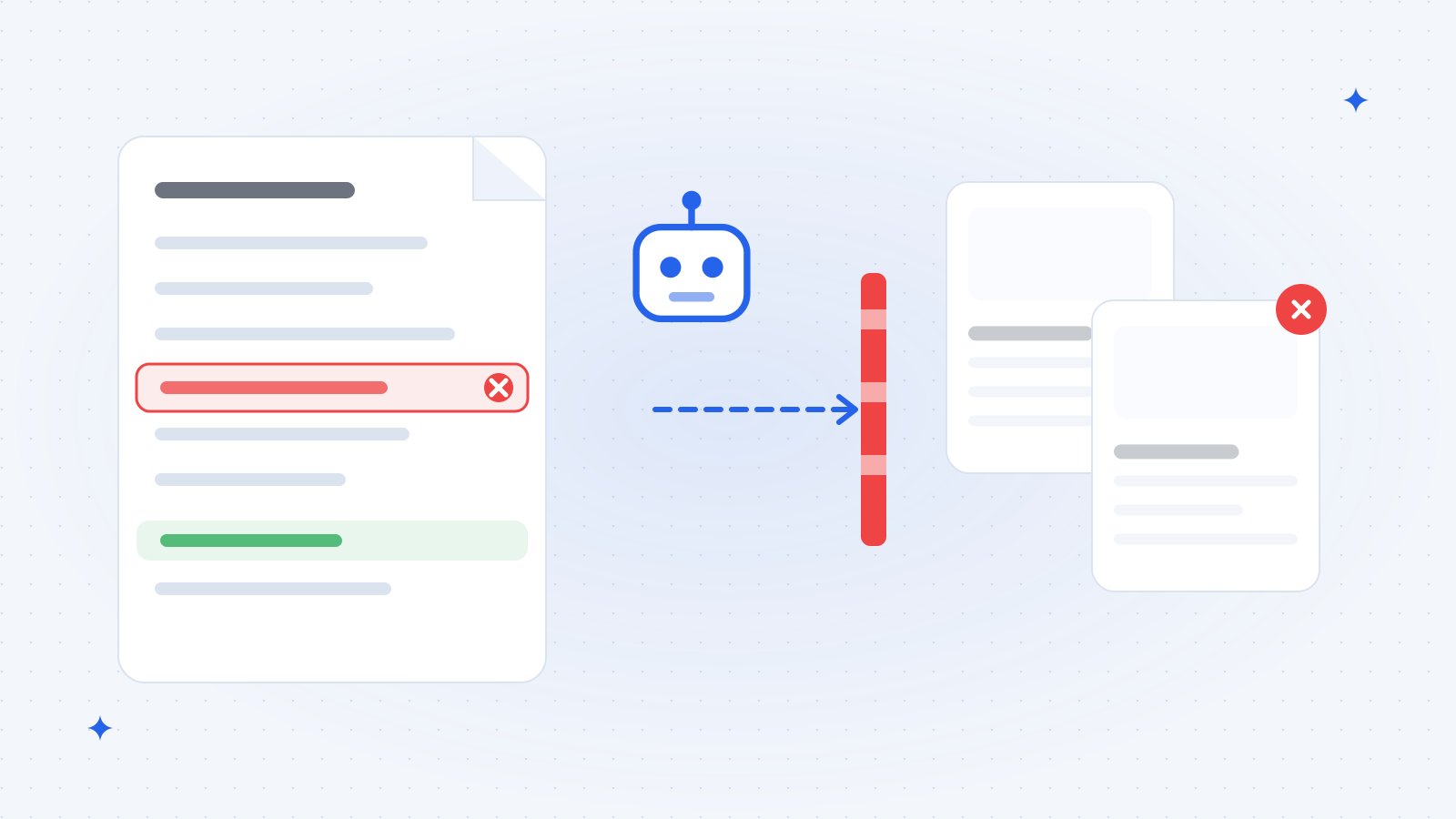
"Blocked by robots.txt" in the Pages report of Google Search Console means Google found the URL, but a rule in your robots.txt file told Googlebot not to crawl it. Google respects the rule, so it never reads the page.
That is either exactly what you wanted, or one of the most expensive mistakes a website can make. The first job is to tell which one it is.
Is the block intentional?
Go through the example URLs in the report and sort them:
| URL type | Usually blocked on purpose? | What to do |
|---|---|---|
| Cart, checkout, my account, login | Yes | Nothing, the status is fine |
| Internal search results (?s=, /search/) | Yes | Nothing |
| Filter and sort parameters in a shop | Often | Fine, as long as the main category pages are crawlable |
| Product, category, service or blog pages | No | Find the rule and fix it |
| The home page or every URL of the site | No | Urgent: a site-wide block |
If only private and duplicate pages are listed, you can ignore the report. Google shows it for information, it is not a penalty.
Find the rule that blocks the page
- Open yourwebsite.com/robots.txt in your browser and read the Disallow lines.
- Or paste the URL into our free robots.txt checker. It applies Google's matching rules and shows the exact line that blocks the page.
- In Search Console, URL Inspection on the address also says "Blocked by robots.txt" under crawl status.
Google uses the most specific rule. Allow: /shop/ beats Disallow: / for /shop/ pages, because it is longer. A * matches any characters and a $ marks the end of the URL, so Disallow: /*.pdf$ blocks every PDF but nothing else.
The most common culprits
Disallow: /left over from development. Staging sites block everything, and the rule gets copied to the live site at launch. WordPress has a related switch: Settings > Reading > Discourage search engines from indexing this site. Make sure it is off.- A rule that is broader than intended.
Disallow: /pblocks /privacy, but also /products/ and /pricing/. Add the closing slash:Disallow: /private/. - Blocked theme and plugin folders. Rules such as
Disallow: /wp-content/stop Google from loading your CSS and JavaScript, so it cannot render the page properly. - Plugins and hosting templates. Some security, SEO and staging plugins write their own rules. If the file changed and nobody edited it, check those first.
How to fix it
- Edit robots.txt. In WordPress, Yoast SEO (Tools > File editor) and Rank Math (General Settings > Edit robots.txt) can edit it. In Shopify, edit the robots.txt.liquid template.
- Remove the rule, or narrow it so it only matches the pages you really want to hide.
- Test the URL again in the robots.txt checker.
- In Search Console, open the issue in the Pages report and click Validate fix. Google rechecks the URLs over the following days or weeks.
"Indexed, though blocked by robots.txt"
This is a different status. Google could not crawl the page, but it indexed the URL anyway because other pages link to it. It then shows in results without a proper description.
- If the page should be in Google: remove the block, as above.
- If it should not: allow crawling and add a noindex meta tag. This sounds backwards, but Google can only see noindex on a page it is allowed to read. robots.txt controls crawling, noindex controls indexing.
How Vistobi helps
- Free, no account: the robots.txt checker tests any URL against your rules and also shows whether AI crawlers such as GPTBot and Google-Extended may read your site. The free SEO checker reads robots.txt together with titles, descriptions, headings, the sitemap and HTTPS.
- In the 7-day free trial (no card needed): connect Google Search Console and get every fix in priority order with exact steps, re-checked after you change something.
Takeaways
- "Blocked by robots.txt" means a Disallow rule stops Googlebot from crawling the URL.
- Private, cart and search pages: fine. Products, services, articles or the home page: fix it.
- The longest matching rule wins. A missing slash or a leftover
Disallow: /causes most problems. - To keep a page out of Google, use noindex and let it be crawled.
- If your sitemap is also failing, read Couldn't fetch sitemap. If the site does not appear at all, start with why your website is not showing on Google.